

What Is a Router and How Does It Work? Types and Modem Difference

At a glance
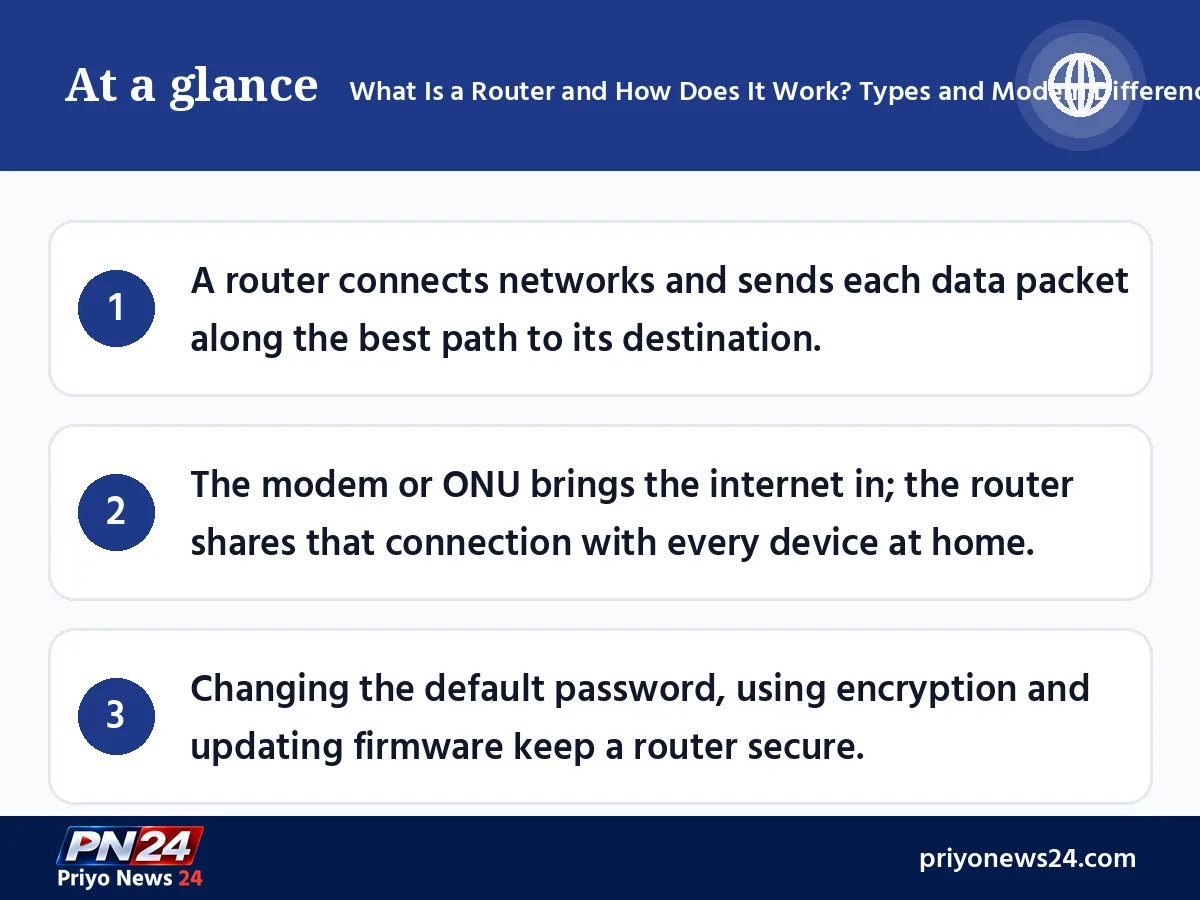
- A router connects networks and sends each data packet along the best path to its destination.
- The modem or ONU brings the internet in; the router shares that connection with every device at home.
- Changing the default password, using encryption and updating firmware keep a router secure.
Almost all of us are connected to the internet in some way. At home, one broadband line runs a phone, a laptop and a smart TV at the same time, and behind it sits a small box: the router. Yet many people don't know what a router is and how it works, how it differs from a modem, or which one to buy. This guide explains it all in plain language, so you can understand and manage your own home network.
What is a router?
A router is a networking device that connects two or more IP networks and controls how data moves between them. It combines hardware and software, and it has two main jobs:
- Connecting different networks, such as your home network and the global internet.
- Sharing one internet connection with many devices, so the whole family can be online at once.
A router that connects devices by radio waves instead of cables is what we usually call a "Wi-Fi router".
How does a router work?
On the internet, a photo, message or video doesn't travel in one piece. It is split into small data packets, and each packet carries the address it is going to: the destination IP address. A router works a lot like a sorter at a post office:
- Receive the packet from a device or from the internet.
- Read the address in the packet header to find the destination IP.
- Check the routing table, a list stored inside the router of possible paths to different destinations.
- Pick the best path. When several paths exist, Cisco explains, the router compares a "metric" (a preference value) and chooses the path with the lowest one, the most efficient route.
- Forward the packet to the next network. A packet often passes through several routers before it arrives.
All of this happens in milliseconds, for thousands of packets every second.
Why we use a router
Say your computer gets internet straight from a modem or your ISP's device. Now you want your phone, laptop and TV on the same connection. That's exactly when you need a router. The main benefits:
- One connection shared by several devices at the same time.
- A local network at home or in the office for sharing printers and files.
- Built-in firewalls and web filtering that block unwanted incoming data.
- Control over passwords, encryption and settings such as port forwarding.
Router vs modem vs switch
These three boxes look alike but do different jobs.
| Device | Main job | Where it works |
|---|---|---|
| Modem | Converts the ISP's signal into a digital signal devices understand | Where the internet meets your network |
| Router | Builds a network and sends data between different networks | Between your home network and the internet |
| Switch | Moves data between devices on the same network | Inside the local network |
On fibre broadband in Bangladesh, the ISP often supplies an ONU or modem, and a separate Wi-Fi router is plugged into it. Some ISPs supply one device that does both. Even when both jobs share one box, they remain two different jobs.
Types of routers
The most common types, by how they are used:
- Wired (broadband) router: connects to the modem and devices with Ethernet cables to create a local area network (LAN).
- Wireless (Wi-Fi) router: connects to the modem by cable and broadcasts radio signals to create a wireless network (WLAN). This is the one most homes use.
- Core router: handles heavy traffic inside large organisations or ISP networks and does not talk directly to outside networks.
- Edge router: sits at the edge of a network, linking internal core routers with outside networks.
- Virtual router: software that does the job of a hardware router, often used as a backup in cloud and large networks.
- Brouter: a device that can work as both a bridge and a router.
Wi-Fi generations: which router to buy
When you shop for a Wi-Fi router, the box will say Wi-Fi 5, Wi-Fi 6 or Wi-Fi 7. The generations in use as of November 2026:
| Generation | IEEE standard | Bands |
|---|---|---|
| Wi-Fi 4 | 802.11n | 2.4 and 5 GHz |
| Wi-Fi 5 | 802.11ac | 5 GHz |
| Wi-Fi 6 | 802.11ax | 2.4 and 5 GHz |
| Wi-Fi 6E | 802.11ax | adds 6 GHz |
| Wi-Fi 7 | 802.11be | 2.4, 5 and 6 GHz |
Before you buy, remember:
- A router can't deliver more speed than your internet package. On a 20-50 Mbps plan, an expensive router adds little.
- Match the router to the Wi-Fi generation your phone and laptop support.
- In a large home or one with several floors, a mesh system often covers better than one powerful router.
- Dual-band (2.4 and 5 GHz) routers are now common at most prices; 2.4 GHz reaches farther, 5 GHz is faster up close.
How to keep your router secure
An unprotected router lets anyone from a neighbour to a hacker into your network. So:
- Change the default admin password. The one printed on the router is easy to find.
- Keep WPA2 or WPA3 encryption on and use a strong Wi-Fi password.
- Update the firmware regularly. Manufacturers fix security flaws in updates.
- Keep the firewall on and turn off port forwarding you don't need.
- Check the list of connected devices. If you see one you don't recognise, change the password.
- Use a guest network for visitors if your router has one.
Where to place your router for a better signal
The same router in the wrong spot can leave half your home with a weak signal. A few simple rules improve speed for free:
- Put it near the centre of your home, in an open and slightly raised spot, not on the floor or inside a cupboard.
- Keep it away from thick walls, metal objects, aquariums and microwaves.
- If it has antennas, point one up and one sideways to spread the signal in different directions.
- Connect fixed devices like a desktop, smart TV or games console by LAN cable where possible.
If your internet is slow, check these first
- Turn off the router and the modem or ONU, wait a minute, then turn them back on.
- See whether other devices have the same problem; if only one does, the issue is that device.
- If a light on the router is red or off, contact your ISP, as the line may be at fault.
- If an unknown device appears in the connected list, change the password.
Final word
Once you understand what a router is and how it works, you can fix many home internet problems yourself. The modem or ONU brings the internet in; the router reads its routing table, sends every packet the right way and shares the connection with all your devices. Choose a router of the right Wi-Fi generation for your needs, and keep an eye on passwords, encryption and updates. Your network will be faster and safer.
FAQ
Are a router and a modem the same thing?
No. A modem converts your internet provider's signal into a digital signal your devices understand, while a router builds a network from that connection and delivers data to many devices. Many ISPs, however, supply one box that does both jobs.
What is the difference between a router and a switch?
A switch moves data between devices inside the same network. A router moves data between different networks, such as your home network and the internet.
Do I need a Wi-Fi 6 router?
If your phone or laptop supports Wi-Fi 6 and many devices are online at home, a Wi-Fi 6 or newer router performs better. But no router can deliver more speed than your internet package provides.
How often should I change my router password?
There is no fixed rule, but change the default admin password as soon as you set the router up. Change the Wi-Fi password again after sharing it widely or if you spot an unknown device.
Can a router stay on all the time?
Yes, routers are designed to run around the clock. Keep it in a well-ventilated spot, and in areas with unstable electricity a stabiliser or UPS helps it last longer.
Comments
No comments yet — be the first to comment.